More people now ask ChatGPT who to hire. When they do, ChatGPT can show a business with its name, address, website and details. Claiming your profile puts you in charge of that information.
OpenAI calls this Business Hub. It is free. You claim your listing, prove the business is yours and then you can edit it. This guide walks through every step with screenshots.
Why It Matters
- Homeowners and businesses ask ChatGPT for a painter, a plumber or a builder near them. Your profile is what ChatGPT can show them.
- ChatGPT may already have a listing for you. It was built from what ChatGPT found online. It could be missing details or have old ones.
- Once you claim and verify it, you can fix your details and add photos. You also get a blue check.
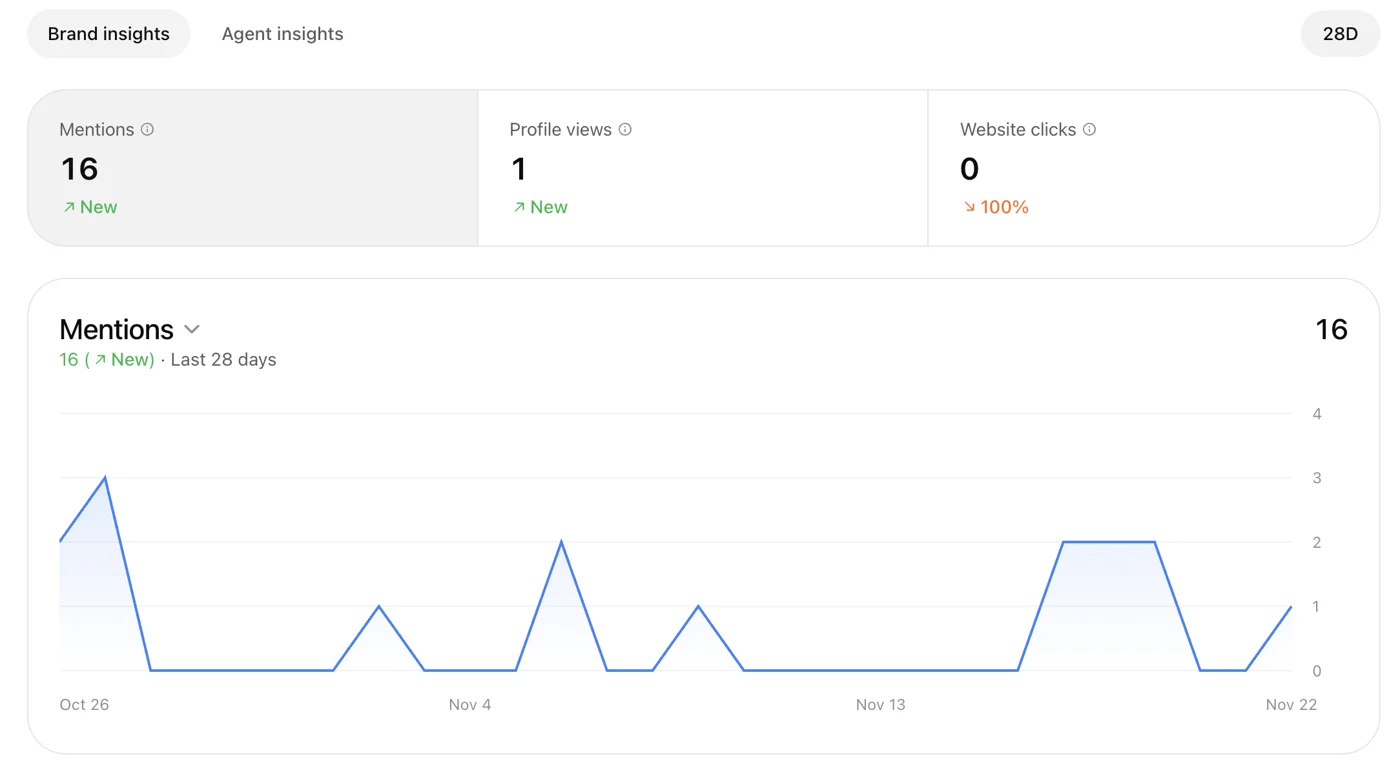
- You can see your numbers. Business Hub shows how many times ChatGPT mentioned you, how many people viewed your profile and how many clicked to your website over the last 28 days.
Here is what those numbers look like on our own profile.
Before You Start
Your part only takes a few minutes. After that, OpenAI reviews your claim and emails you. Have these ready.
- A ChatGPT account. A free account works. Use your own regular account. Do not use a ChatGPT Business or Team workspace.
- A computer. These steps are written for a desktop or laptop at chatgpt.com.
- Your business phone or business email. ChatGPT sends a code to one of them.
- A photo ID, like your driver's license.
- Your business registration and proof you own the business. OpenAI says the ID check may ask for these.
Step 1 Open Business Hub
- Go to chatgpt.com and sign in. No account yet? Click Sign up for free and make one.
- Look at the menu on the left side of the screen. Click Explore.
- Click Business. This opens Business Hub.
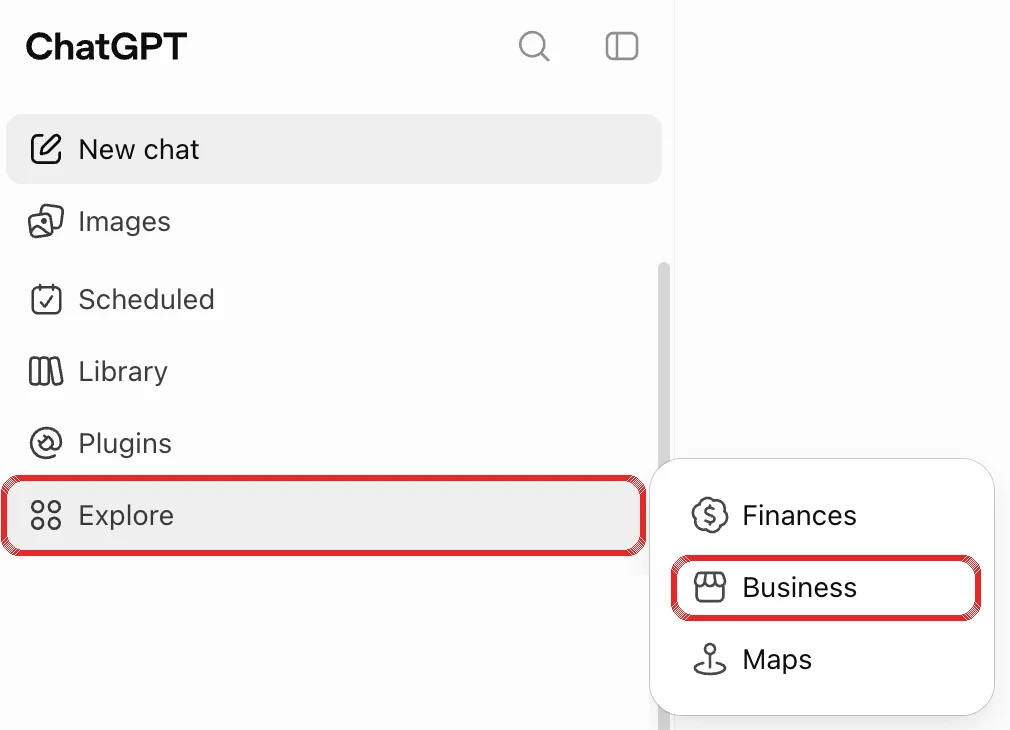
Don't see Business under Explore? Open chatgpt.com/business-hub and click Claim your business.
Step 2 Find Your Business
- Type your business name in the search box.
- Pick the listing that matches your business. Check that the name and address are yours.
- Confirm the ChatGPT account you want to manage it with.
Can't find your business? ChatGPT may not have a listing for it yet. Right now local businesses can only claim a listing ChatGPT already has. Online businesses may see an option to add theirs.
Step 3 Verify Your Claim
ChatGPT asks you to prove the business is yours. Pick the option that is easiest for you.
- Business phone. Choose a text or an automated call. Click Get code. Type in the code you get.
- Business email. Click Business email, then Get code. The code goes to the email tied to your business.
- Website domain. You add a small record to your domain settings. Then click Verify domain. This one is more technical. Your web person can do it.
- Shopify store. For online stores. Click Connect Shopify and follow the steps.
Once you submit, OpenAI reviews your claim. They email you with a decision or ask for more information. Check your spam folder too.
Step 4 Verify Your Identity
After your claim is approved there is one more check. This is the step that lets you edit your profile, see your numbers and get the blue check.
- In the left menu, click Explore, then Business.
- Select your business profile.
- Click Complete verification with Persona. On some screens it just says Verify.
- Click Verify with Persona. Then click Continue to Persona and follow the steps.
Persona is the company OpenAI uses to confirm who you are. Use the legal business name from your registration papers. If the check fails or times out, click Try again.
What Claiming Won't Do
Claiming your profile does not make ChatGPT recommend you more. It makes sure ChatGPT has the right facts about you. Who gets named in the answer depends on what ChatGPT reads about you across the web.
That part is called AI Search. ChatGPT reads your Google profile, your website and the sites that list you. When they all say the same thing, it can trust them. Every month we fix what AI tools read about you and get you mentioned on the sites they cite. Then we track the real answers on six AI tools. See how AI Search works.
ChatGPT Ads
There is a second way to show up. ChatGPT started showing Ads in 2026. ChatGPT Ads put your business right under the answer, marked Sponsored. You set the budget. You pay per click or per thousand views.
Ads sit under the answer and you pay for them. Being named in the answer itself is AI Search. The two work together. We set up the Ad account, build the Ads and manage them for you. See how ChatGPT Ads work.
Common Questions
Does it cost anything?
No. Claiming and verifying your profile is free. You do not need an Ad account.
Someone else already claimed my business. What do I do?
Open the profile and click the three dots. Choose Dispute ownership and verify with Persona.
I have more than one location. Do I claim each one?
Yes. Each location is its own profile. There is no main profile over them.
Can I delete my profile later?
Only a draft that was never published. OpenAI says its support team cannot delete or unpublish a live profile.
Where is OpenAI's own guide?
It is here. Setting up your business on ChatGPT.
Want to know where you stand in your local market?
We will put together a free analysis of your local market, where you rank on Google and in AI answers across your service area, and what it would take to move up.
Related reading. How to measure whether AI recommends your business and what to do if Google suspends your Business Profile.